
The framing guide
How to keep the same framing across photos
A new outfit, a different location, another day of progress. Keep a familiar frame so the change is what people notice.
To keep the same framing, use your first photo as a reference. Keep the same camera lens and orientation, return to a similar distance and height, then match your subject’s size and position before taking the next shot. A camera overlay lets you compare the reference with your live view.
 Cream · Park
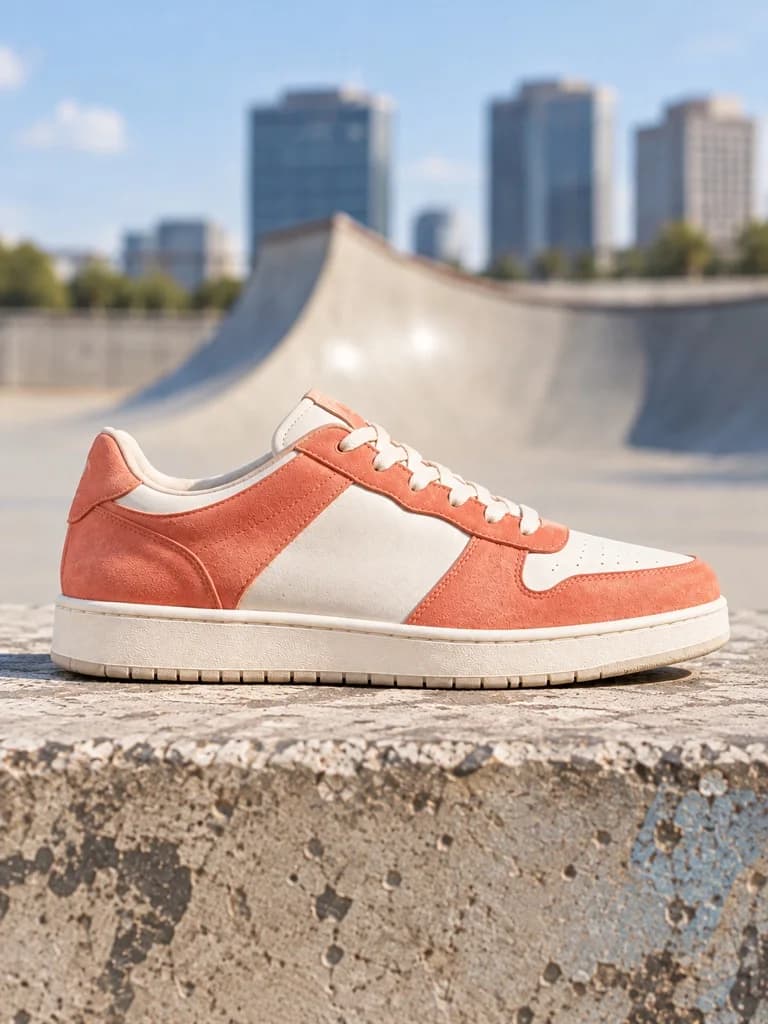 Coral · Skatepark
 Green · Café
01 / The reference
Choose what stays consistent
Decide what connects the photos. For outfit changes, it might be your pose and the position of your feet. For a product collection, it might be the silhouette. For an artwork in progress, it might be the edges of the paper or canvas.
Take a first photo with enough space around the subject for your intended crop. Pick two or three landmarks you can recognize again: the top of your head, the bottom of a shoe, or the corners of a canvas. Use this photo as the reference for the whole series.
For progress photos, keep the setting stable. For match cuts across different locations, let the background change and concentrate on the subject.
02 / The camera setup
Repeat your distance, height and angle
Use the same lens and phone orientation for every shot. Changing lenses or moving closer can change the perspective, even when the subject appears to fill the same amount of the frame.
Start at a similar distance, keep the phone at the same height, and check its tilt. For a drawing, aim squarely at the page; for a side-view shoe, keep the same side facing the camera. Move the phone to match the view before reaching for an editing tool.
At home or in a studio, a tripod and marks for your feet or subject make the setup easier to repeat. If you return over several days, note the setup and use similar lighting when you want the change itself to stand out.
03 / The camera overlay
Put the reference in your camera view
Looking back and forth between your gallery and camera makes small differences easy to miss. A transparent reference photo over the live view gives you a guide while you compose.
- In SnapSeries on iPhone, choose Start a series. Take a reference photo or import one you already have.
- Confirm your photo with Use as Reference, then open the camera to add your next shot.
- Use Reference in the overlay controls. Adjust its opacity so you can see both the guide and your subject. If a subject outline is available, you can choose Outline instead.
- Match the subject’s size first, then its position and angle. Check your landmarks before taking the photo.
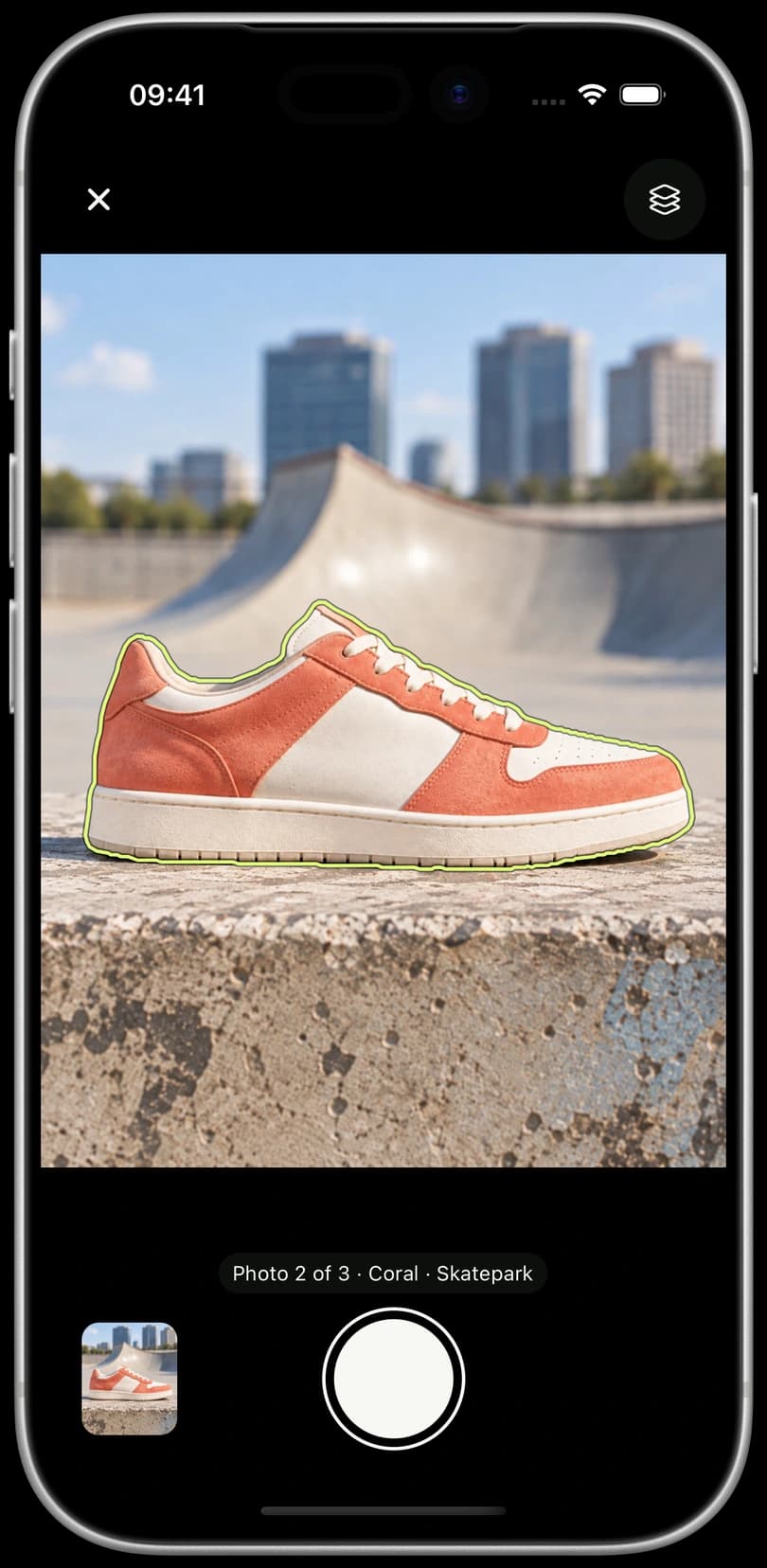
An outline is useful when you want to repeat a recognizable shape. The full reference photo is useful for matching a room, a pose, or a project whose shape changes over time. The guide stays fixed; you move the phone or subject to line up the shot.
04 / The check
Check the sequence before you move on
After two or three photos, preview the series. Look at your chosen landmarks: do they jump from one position to another? Compare each new shot with the original reference so small differences do not build up across the series.
- The subject jumps sideways: check its position against the overlay.
- The subject grows or shrinks: check your camera distance and lens.
- The shape looks different: check camera height, tilt and the subject’s angle.
- The frame flashes brighter or darker: check the lighting between shots.
Fine Tune can help with small position, zoom or rotation differences after capture. It cannot recreate the viewpoint of a photo taken from a different angle. If the perspective looks wrong and the subject is still there, retake the shot.
Common questions
Do I need a tripod?
A tripod helps when your camera can stay in one place. For photos taken in different locations, use the reference to rebuild the framing by hand, checking distance, height and angle each time.
Can I use photos I have already taken?
You can import a photo as your reference and add existing photos to a series. How closely they match depends on their original framing. Manual adjustments can help with small differences, but shooting with a guide gives you more control from the start.
Will a camera overlay make every photo identical?
No. It gives you a visual reference for composition. You still control the pose, camera position, perspective and lighting. Aim for a consistent visual connection between the photos.